Role Permissions
Prefer to watch?
The Role & permission video tutorial shows how to create, view, edit and delete a role.
Overview
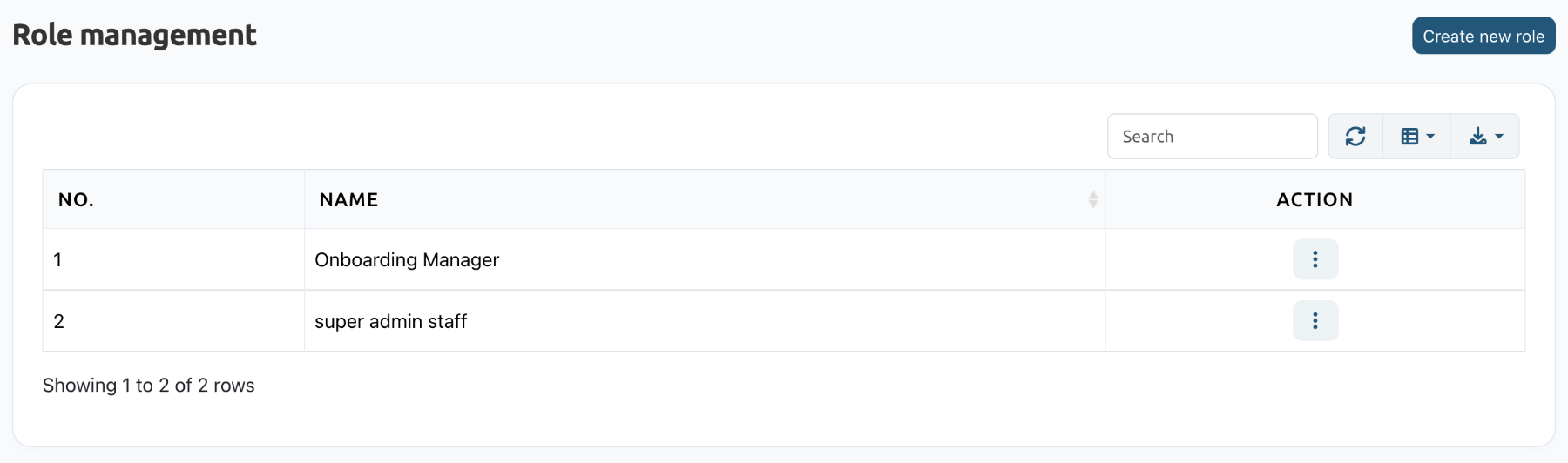
A role decides what a Super Admin staff member can see and do. Create a role, choose its permissions, then give the role to a staff member in Personnel management > Staff.
The following roles are reserved and are not listed here: Super Admin, School Admin, Teacher, Guardian, Student.
Create a role
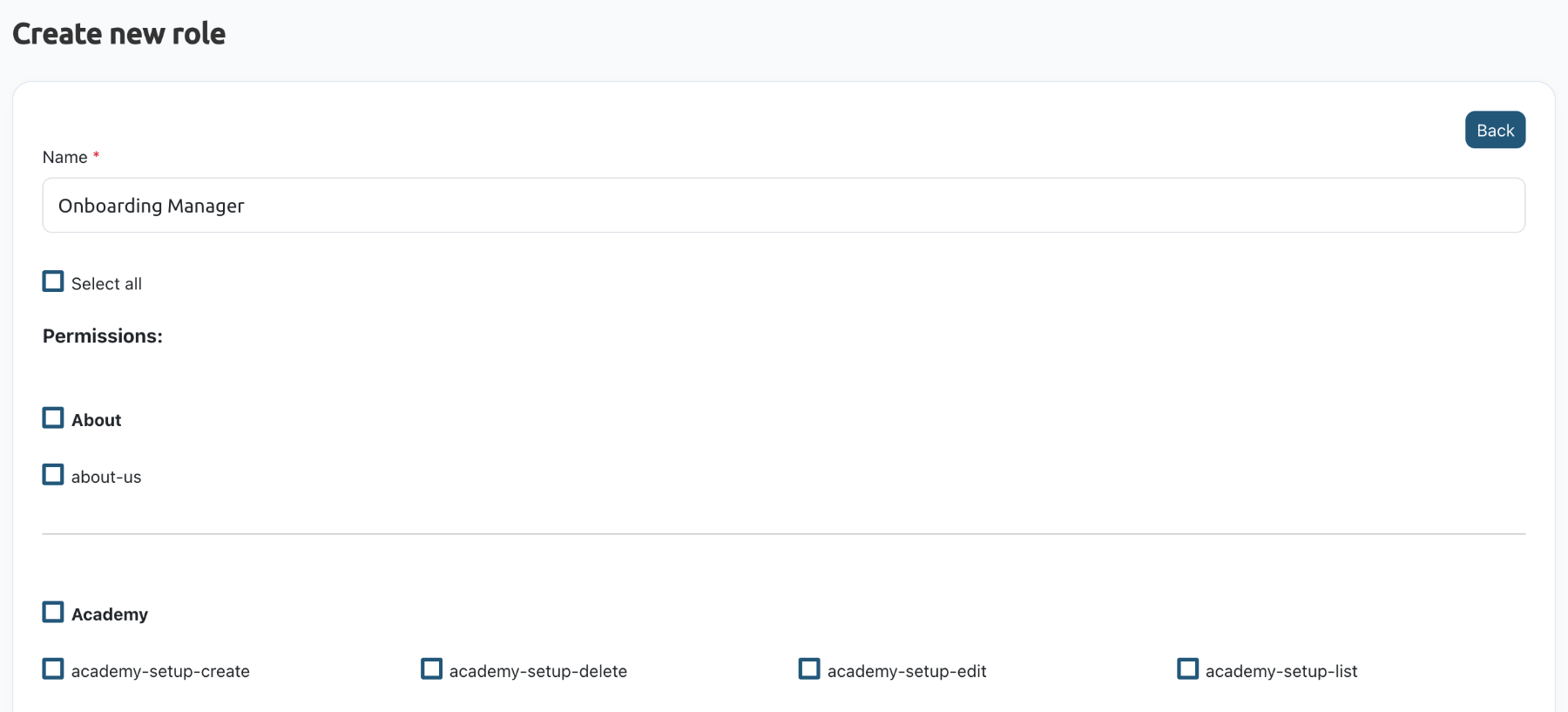
- Navigate to Personnel management > Role & permission and click Create new role.
- Enter a Name for the role, for example Onboarding Manager.
- Choose the permissions. They are grouped by module:
- Select all gives every permission.
- Tick a module's name, for example Schools, to give every permission in that module.
- Tick single permissions, for example contact-inquiry-list or package-list, to give only those.
- Click Submit. The role appears in the list.
View, edit or delete a role
Use the ⋮ menu in the role's row:
-
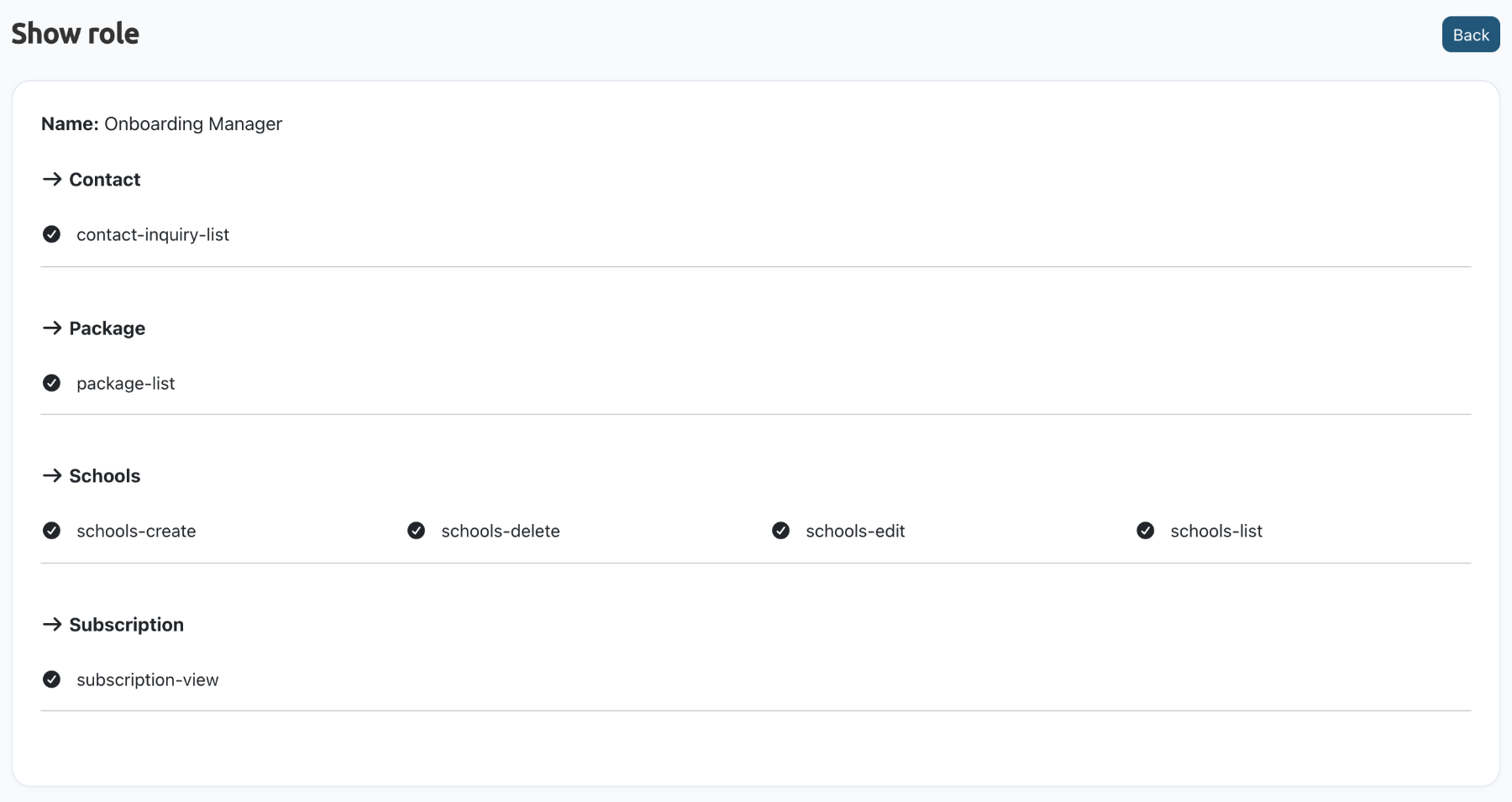
View: shows the role's name and its permissions, grouped by module.
-
Edit: the role's permissions are already ticked. Add or remove any and click Submit.
-
Delete: click Yes, delete it to remove the role, or Cancel to keep it. A deleted role can't be restored.